We began this article series by exploring the key aspects of Headless CMSs and their role in Xperience by Kentico. Throughout the series, we will demonstrate how to integrate a Headless channel with the Next.js platform by building a simple campaign site. In this follow-up article, we will dive into the practical implementation of this integration. The first step involves setting up the CMS, starting with existing content in Xperience by Kentico's Content Hub, followed by creating a Headless channel, content type, and content item.
🏃 Prerequisites
Xperience by Kentico is primarily a .NET application. To serve content through a Headless channel, you must have the CMS running on your local computer 💻 with all the necessary prerequisites installed. While the content served via a Headless channel can be consumed across multiple platforms, there are specific system requirements for the CMS itself.
Before proceeding, it’s recommended to familiarize yourself with the Content Hub, particularly creating a content type and a content item based on that type.
For our hands-on exploration, we will use the Dancing Goat 🐐 sample site. This site provides reusable content items, which we will serve through a Headless channel.
To summarize, here are the two main prerequisites:
- Have an Xperience by Kentico project running on your local machine.
- Install the project using the Dancing Goat project template.
Let’s get started!
Headless Schema
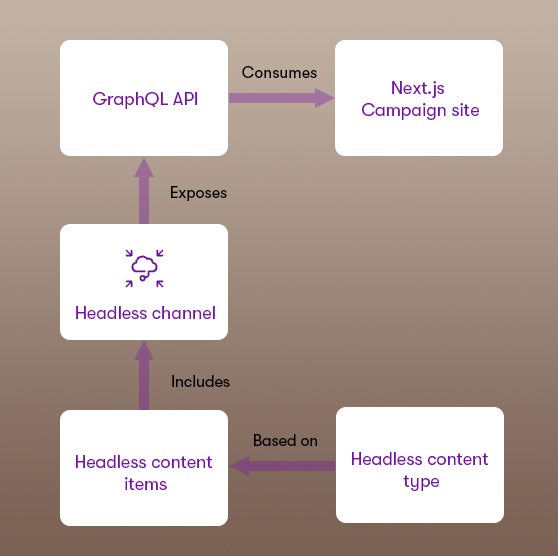
To better understand the setup in the CMS, here’s an outline of the relationship between the key elements:
- A Headless channel serves as a container for content that will be exposed via a single GraphQL API endpoint.
- This content is represented by individual Headless content items.
- These content items are based on specific Headless content types.
- A Headless content type can include fields linking reusable content items from the Content hub. These reusable items can also be utilized in other channels within Xperience by Kentico.
Create a Headless Channel
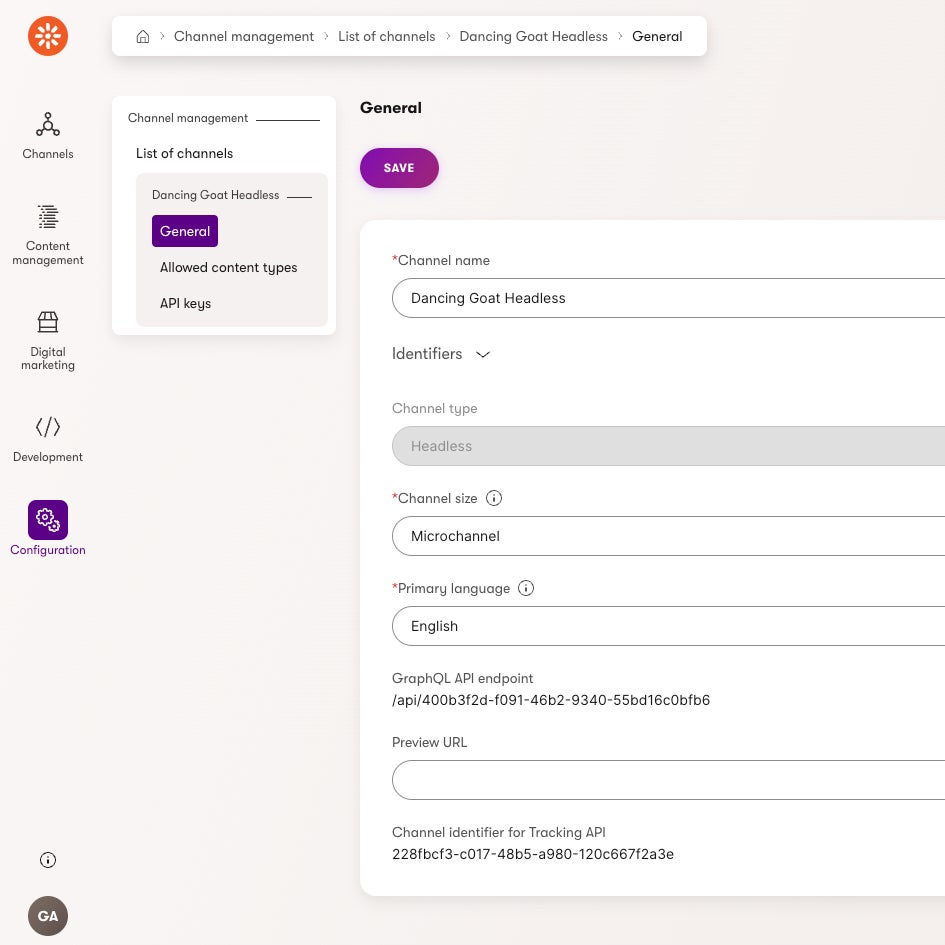
To serve content through a GraphQL API, we first need to create a Headless channel. Follow these steps:
- Navigate to the "Channel management" application.
- Click "New channel" to create a new channel.
- Name the channel "Dancing Goat Headless".
- Set the Channel type to "Headless".
- For Channel size, select "Microchannel"—this is sufficient since we’re only creating a simple campaign site, and the 20-item limit will meet our needs.
- Choose "English" as the primary language.
- Save the channel, and you're all set!
Create a Headless Content Type
The Headless channel can be seen as a simplified Content Hub where headless content items are stored. However, these items must be based on a headless content type. Kentico recommends modeling these content types to represent a unit of the final product you're building—such as a webpage or a mobile app screen. In our case, we’ll create a single headless content type for the entire campaign site as it will contain just a single page. This content type will include fields to link content items from the Content Hub. To keep the example straightforward, we’ll configure it to link only a single banner.
Step 1: Create a New Content Type
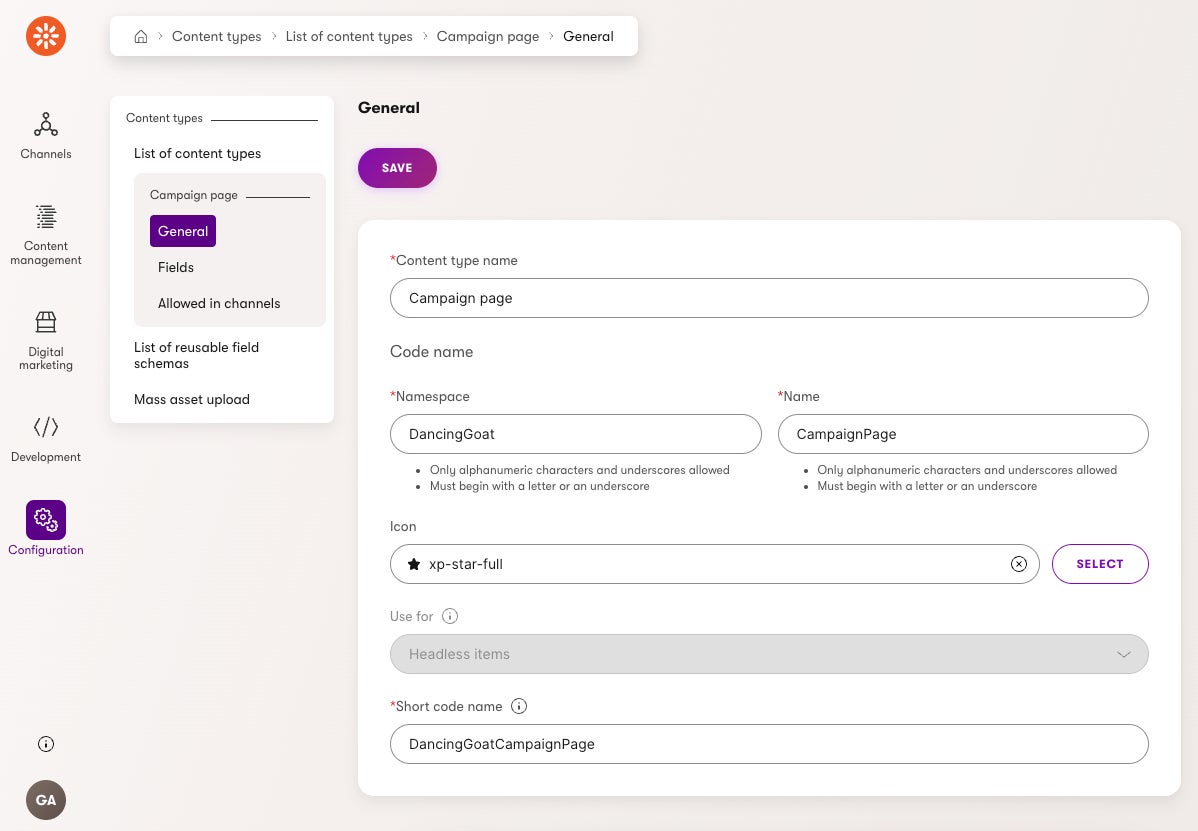
- Navigate to the "Content types" application and click "New content type".
- Name the content type "Campaign page" and set its namespace to
DancingGoat.CampaignPage. - Select an appropriate icon and mark it for "Headless items" usage.
- Save the content type.
Step 2: Add a Banner Field
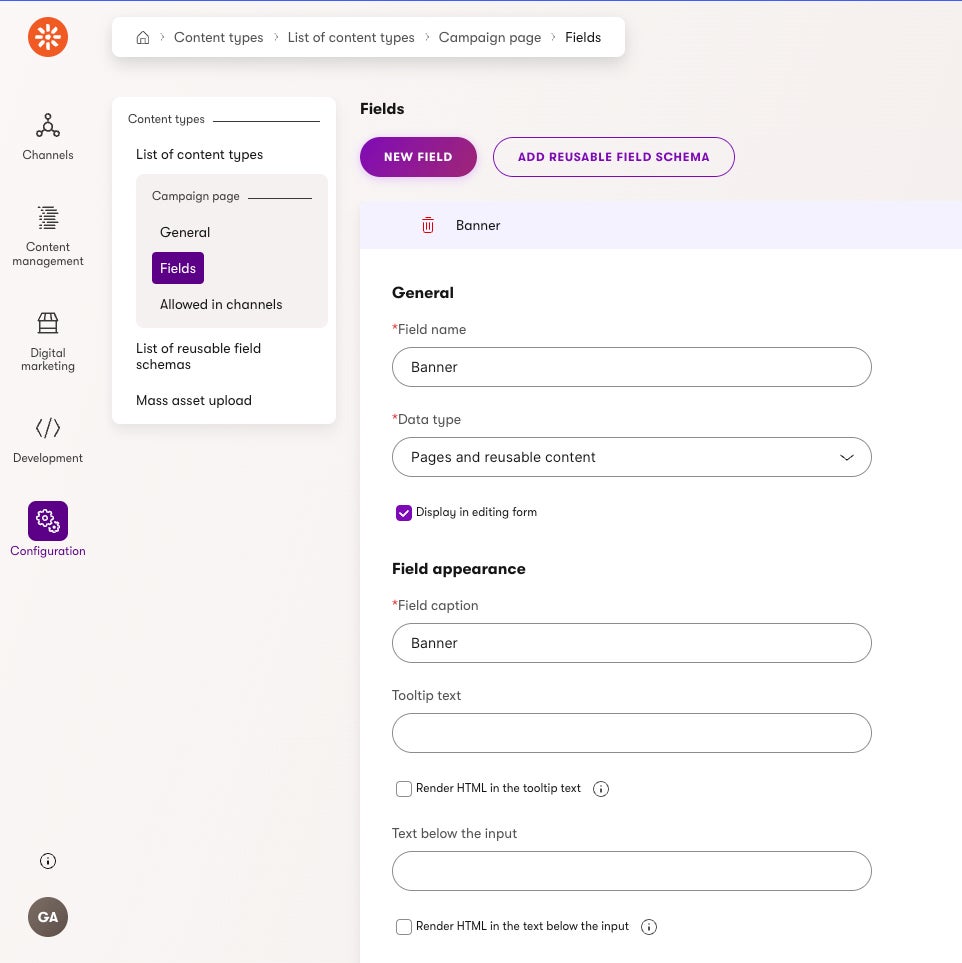
- Create a new field and name it "Banner".
- Set the Data type to "Pages and reusable content".
- For the Form component, choose "Combined content selector".
- To allow only banners, select "Banner" (from the Dancing Goat project template) as the allowed content type.
- Set the Minimum number of selected items to 0 and the Maximum to 1.
- Save the field.
Step 3: Enable the Content Type for the Headless Channel
In the "Allowed in channels" section, select the "Dancing Goat Headless" channel.
With this setup, your headless content type is ready to use in the Headless channel!
Create a Headless Content Item
Next, we’ll create a headless content item based on the "Campaign page" content type. This item will define the content to be delivered through the GraphQL API.
Steps to Create the Content Item:
- Open the "Dancing Goat Headless" channel application.
- Click "New headless item".
- Name the item "Campaign page".
- In the Banner selector, choose an existing content item named "Hero background" (provided by the Dancing Goat project template).
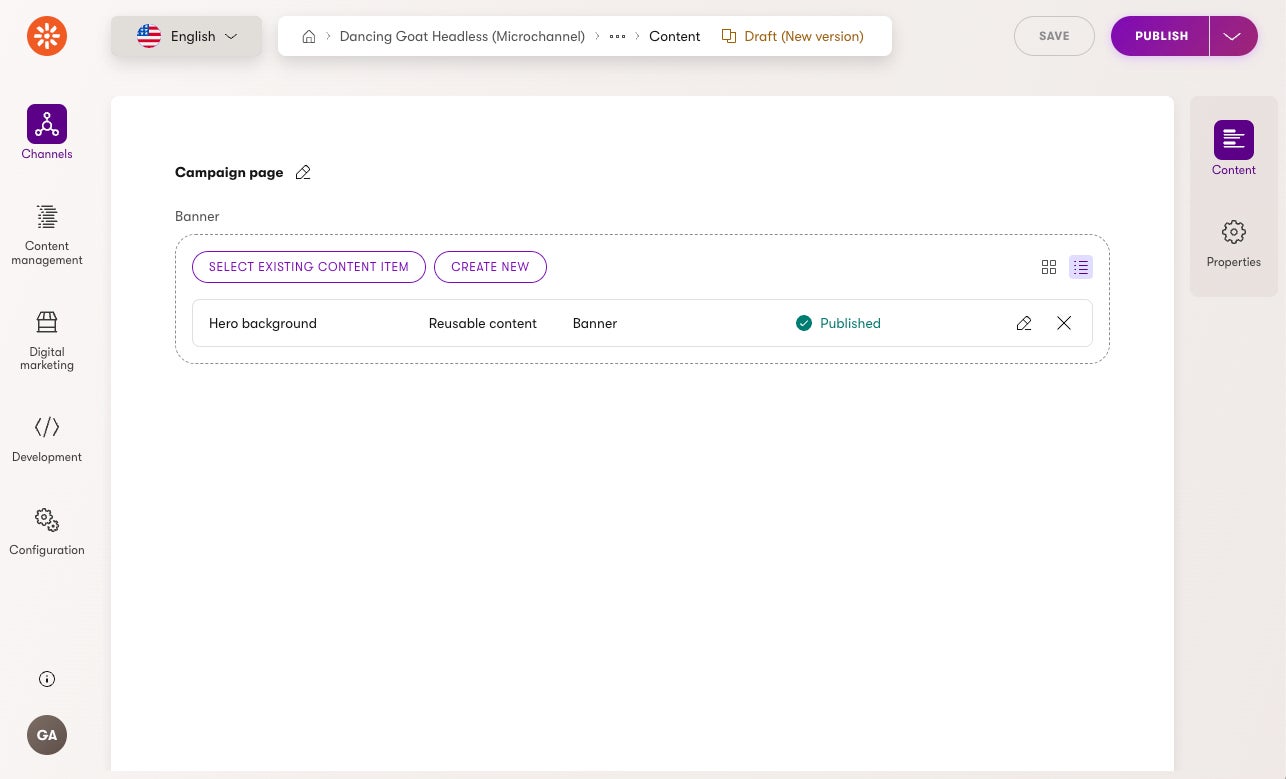
If you click through the "Hero background" item, you’ll see that it contains an image, a header, and text copy. These fields will be accessed through the GraphQL API and rendered in Next.js.
Wrap up
With the creation of a Headless channel, content type and a content item, we’ve laid the foundation for serving 💁 content through a GraphQL API. Our campaign page is now configured and ready for integration. In the next article, we’ll focus on setting up the GraphQL API to make this content accessible.
Further reading
all postsXperience by Kentico Headless channel & Next.js: Data fetching and rendering (Part 5)
In this final part of the series, we continue exploring the building blocks of the Next.js application and outline the actual implementation of fetching data from the Xperience by …
Xperience by Kentico Headless channel & Next.js: Exploration (Part 1)
In this article, I begin exploring the possibilities of the Headless channel in Xperience by Kentico and its potential for sourcing data for the Next.js framework. You’ll learn abo…
Xperience by Kentico Headless channel & Next.js: GraphQL API (Part 3)
Continuing our exploration of the Xperience by Kentico Headless channel and its integration with Next.js, we now turn our attention to exposing data through the GraphQL API. In the…